
Using rd
Everything here works the same in a browser tab and in rd Desktop, which loads the same pages from your gateway.
The portal
Section titled “The portal”Open your gateway (for example https://rd.example.com) and sign in. The portal lists every
machine the gateway knows, and refreshes by itself.
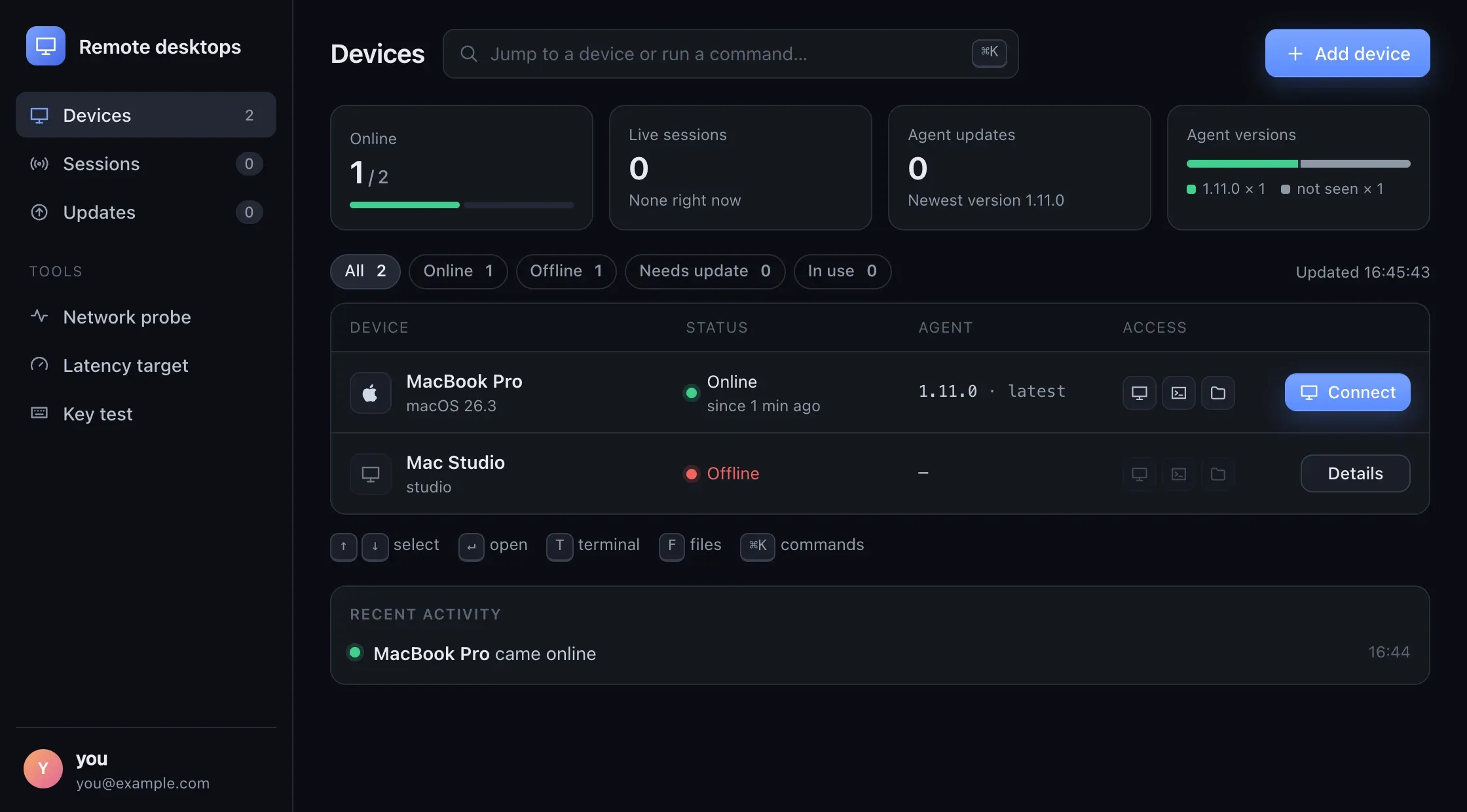
At the top, four tiles count the machines that are online, the sessions open right now, the agents with an update and the agent versions in use; click one to show only those machines (the chips above the list do the same). Each row shows the machine’s name and operating system, whether it is online (and since when) or who is connected to it, its agent version (with the newer one, when the agent found one), buttons for its screen, terminal and files, and its main action: Connect, or Terminal for a machine without a screen.
Click a row for the machine’s details on the right: the open session, screen and input permissions, whether the screen is locked, recovery links (such as Screen Sharing for a locked Mac, see Recovery), the agent’s update with What’s new and Update now (or how to update by hand when the agent can’t install it itself, see Updates), and, for devices added in the portal, New token and Remove device.
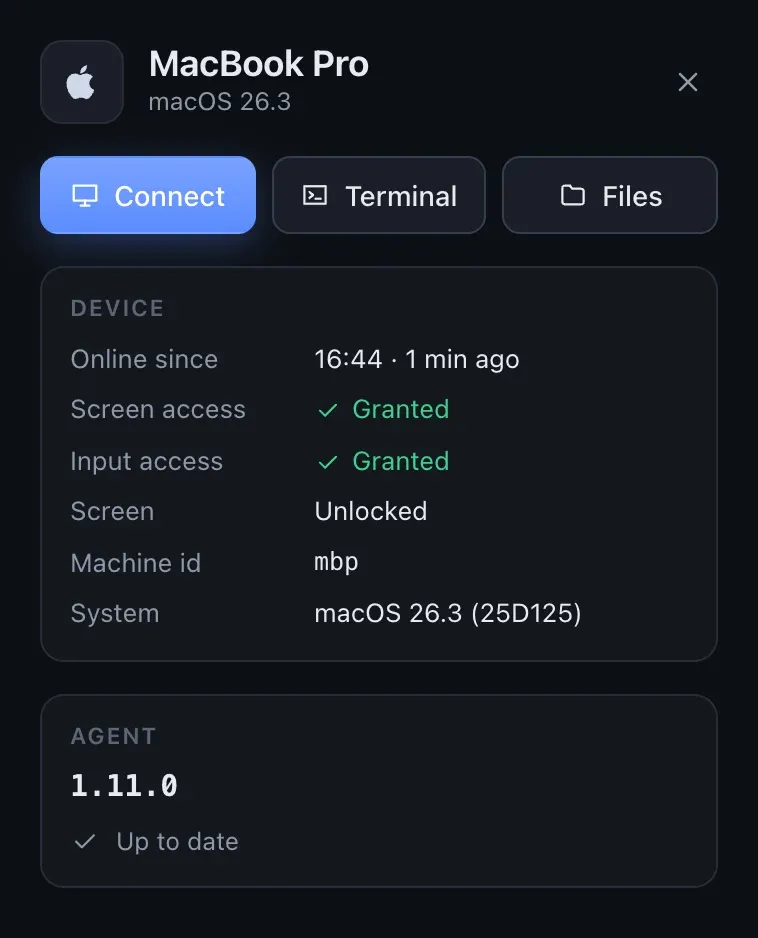
Recent activity below the list shows who connected where, machines coming and going, and updates.
The portal works from the keyboard: ↑ ↓ select a machine, Enter connects (or opens the terminal), T and F open its terminal and files, Esc closes the details, and Ctrl+K (⌘+K on a Mac) or / finds a machine or a command by name.
Add device adds a machine and gives you its setup code (Devices). The links in the sidebar open the network probe, the latency target and the key test.
Connecting
Section titled “Connecting”Click Connect on a machine to open its page (/m/<machine>), then Connect to start
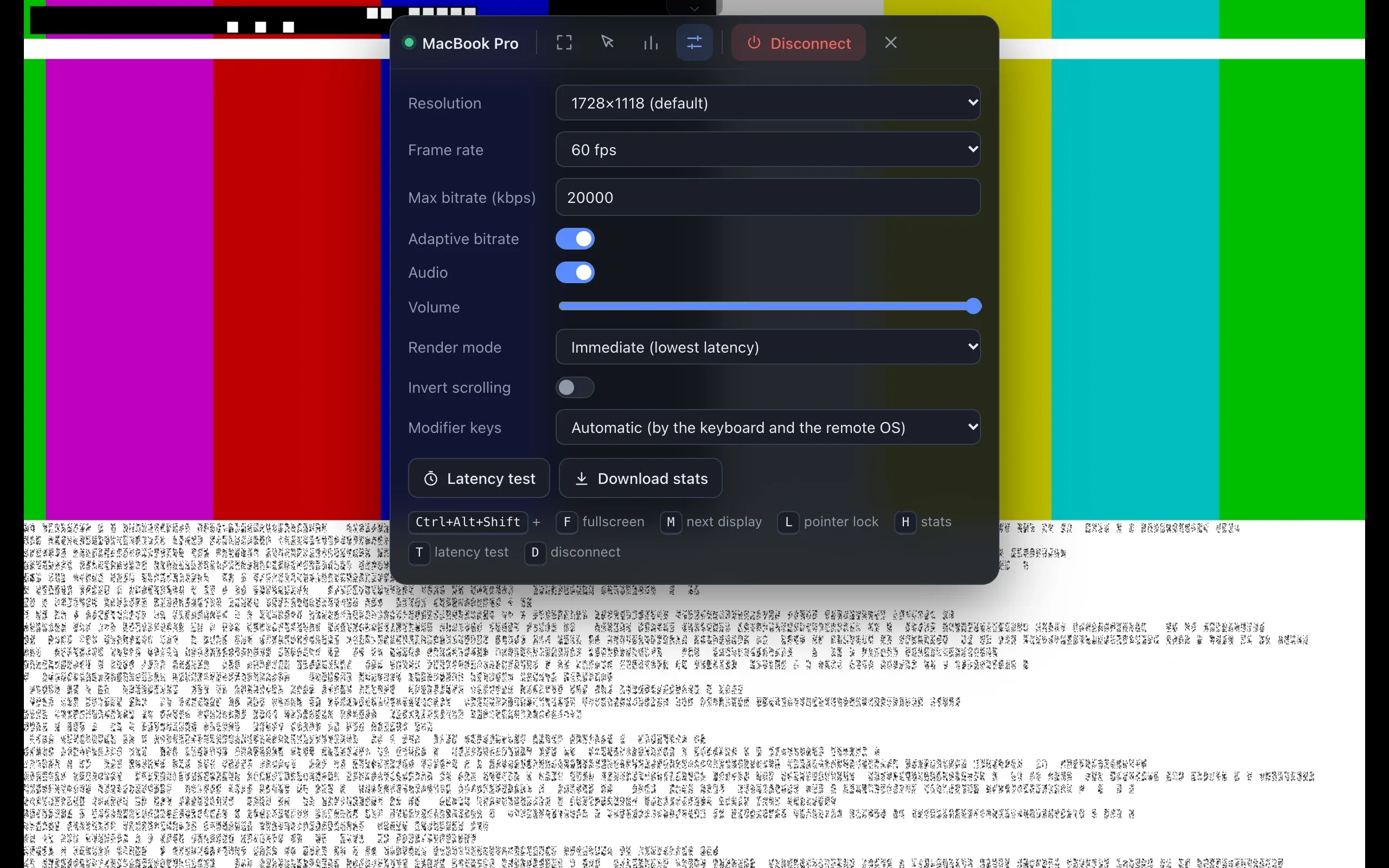
the session. Stream settings on that page are saved per machine, in this browser:
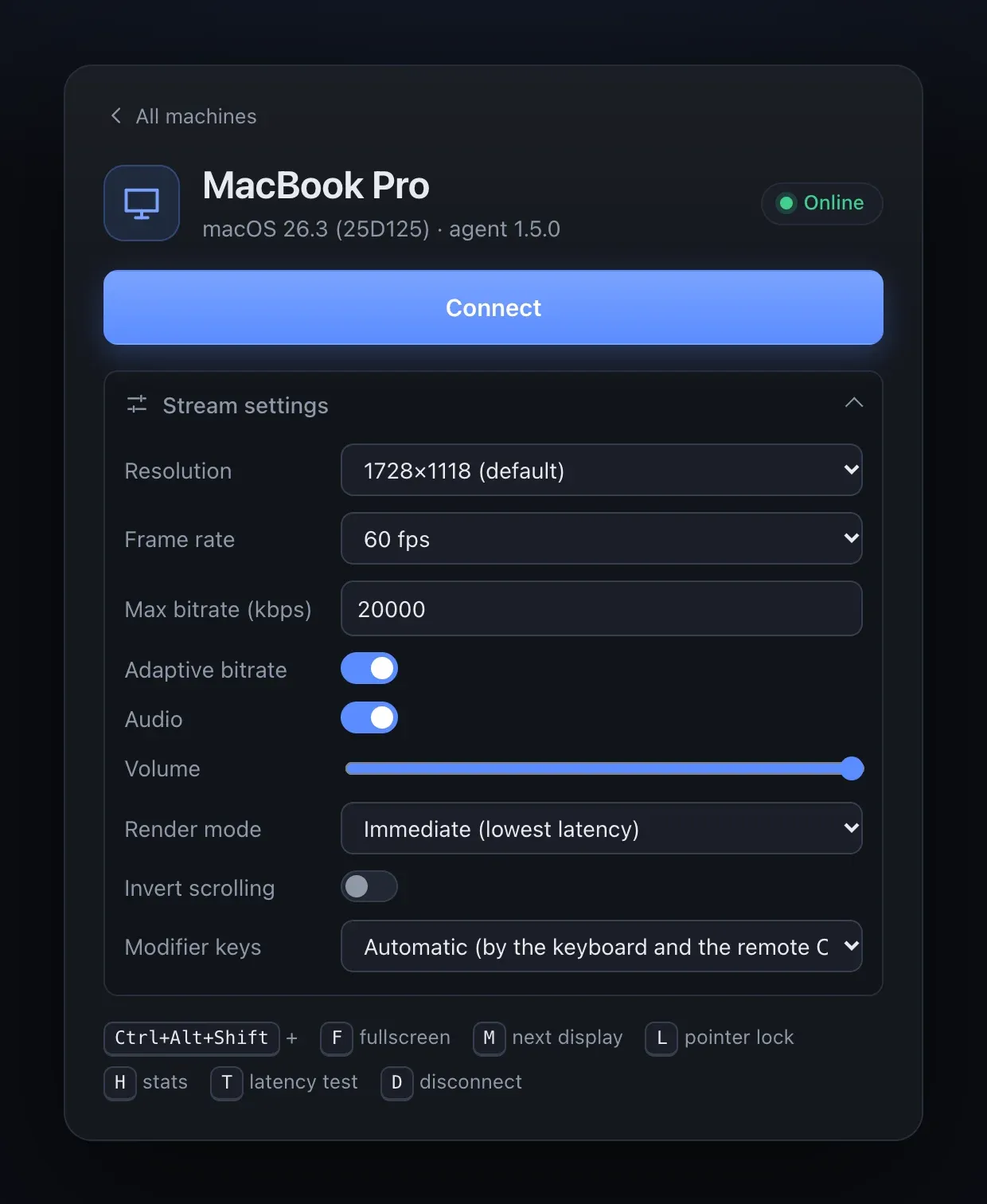
| Setting | Default | Choices |
|---|---|---|
| Resolution | 1728×1118 | Fit to window, 1728×1118, 2592×1676, Native, 1280×828 (gaming). The size is a bounding box: the picture keeps the remote display’s aspect ratio and is never scaled up. |
| Frame rate | 60 fps | 30, 60 or 120 fps (120 is only visible on a 120 Hz screen) |
| Max bitrate | 20000 kbps | 1000 to 100000 kbps |
| Adaptive bitrate | on | Off keeps the bitrate fixed at 8000 kbps (or the maximum, if that is lower). |
| Audio, Volume | on, 100 % | For sound from the host. The agents don’t send any yet. |
| Render mode | Immediate (lowest latency) | Immediate paints each frame as soon as it is decoded; Latest frame per display refresh paints once per refresh. |
| Invert scrolling | off | |
| Modifier keys | Automatic | Automatic, Windows keyboard → Mac, Mac keyboard → Windows, Pass through. See The keyboard. |
In a session
Section titled “In a session”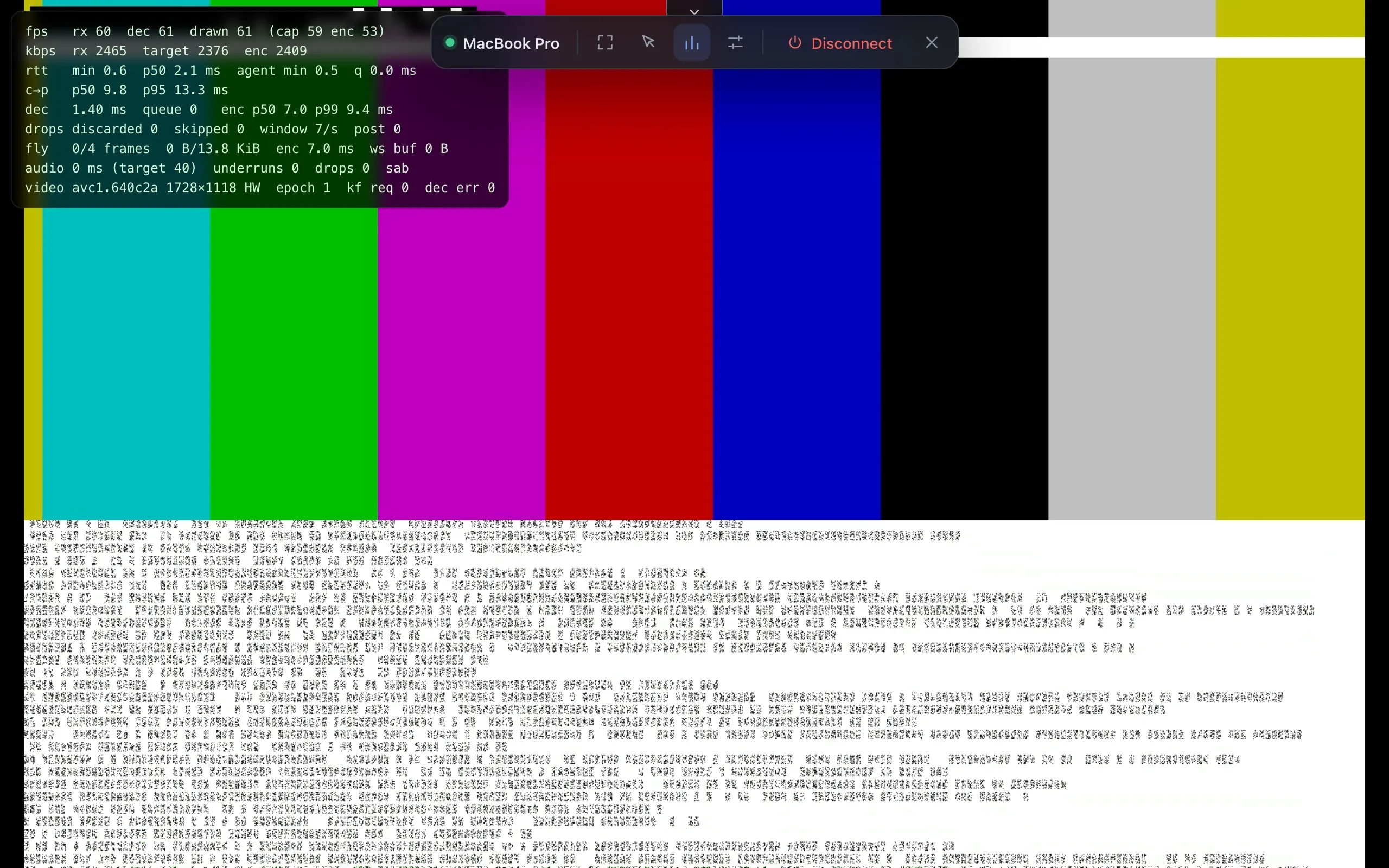
The small ▾ tab at the top of the picture opens the session menu: a display picker (when the remote machine has more than one screen), fullscreen, pointer lock, stats, settings and Disconnect. Settings changed here apply at once; a new size or display starts a new stream with a fresh keyframe.
Shortcuts
Section titled “Shortcuts”All shortcuts are Ctrl+Alt+Shift plus a key, so they never collide with what you type on the remote machine:
| Keys | Does |
|---|---|
| Ctrl+Alt+Shift+F | Fullscreen, with Keyboard Lock where the browser supports it |
| Ctrl+Alt+Shift+M | Next display. The choice is remembered for the next session. |
| Ctrl+Alt+Shift+E | Files: browse the remote machine, download and upload (File transfer) |
| Ctrl+Alt+Shift+` | Terminal: a shell on the remote machine (Terminal) |
| Ctrl+Alt+Shift+L | Pointer lock (Esc releases it) |
| Ctrl+Alt+Shift+H | Stats overlay |
| Ctrl+Alt+Shift+T | Latency test |
| Ctrl+Alt+Shift+D | Disconnect |
When you switch to another tab, the stream pauses; it resumes with a fresh keyframe when you come back.
Files in the session menu (or Ctrl+Alt+Shift+E) opens a file browser next to the remote screen: preview images, audio and video, download files and folders (as a zip), upload by dropping files onto the list or straight onto the remote screen, create folders, rename, and move things to the Trash or Recycle Bin. Browse files on a machine’s page (and Files for it in the portal) opens it without starting a session. Transfers keep the remote screen responsive, keep going while the browser is closed, and continue after a dropped connection. See File transfer.
Terminal
Section titled “Terminal”Terminal in the session menu (or Ctrl+Alt+Shift+`) opens a shell on the remote machine in a panel next to the screen: zsh (your login shell) on a Mac, PowerShell on Windows. Terminal for a machine in the portal (and Open terminal on its page) opens one in its own tab, without starting a session. It needs no SSH server: it runs through the agent over the same connection as the screen. When the connection drops, the shell keeps running, and the terminal reconnects and shows what happened meanwhile. See Terminal.
The keyboard
Section titled “The keyboard”-
Keys are sent by position, not by the character they type, so the remote machine’s own keyboard layout applies, as with a keyboard plugged into it.
-
Caps Lock is kept in sync: the remote lock follows yours.
-
Modifier keys are mapped between Windows and Mac. With Automatic (the default), the viewer looks at your keyboard and the remote operating system:
Keyboard → remote What changes Windows → Mac Ctrl acts as Cmd, the Windows key as Ctrl, Alt as Option. Left Alt+Tab becomes Cmd+Tab (where the viewer gets Alt+Tab at all: in fullscreen with Keyboard Lock, or in rd Desktop). Mac → Windows Cmd acts as Ctrl, Ctrl as the Windows key, Option as Alt. Cmd+Tab becomes Alt+Tab (with rd Desktop, which can see Cmd+Tab). Any other combination (the same OS on both sides, or a Linux keyboard) passes keys through unchanged.
So Cmd+C, Cmd+V and Cmd+Z do what you expect on a remote PC, and Ctrl+C does on a remote Mac. Pass through sends every key as it is.
-
AltGr (Right Alt on international layouts) arrives on a Mac as Right Option. Windows sends an extra left Ctrl with it, which the viewer filters out.
Pointer and displays
Section titled “Pointer and displays”The picture is scaled to fit the window with its aspect ratio kept, and clicks land where you point, letterboxing included. Pointer lock (for games and 3D tools) hides your cursor and sends relative movement; Esc releases it. With several displays on the remote machine, the menu has a display picker and Ctrl+Alt+Shift+M cycles through them. On a Windows PC, trackpad scrolling arrives as smooth, high-resolution wheel input.
The stats overlay
Section titled “The stats overlay”Ctrl+Alt+Shift+H shows what the stream is doing, once a second. Download stats in the settings saves its main figures for the session so far as JSON, with your settings and the last latency test.
fps rx 60 dec 61 drawn 61 (cap 59 enc 53)kbps rx 2465 target 2376 enc 2409rtt min 0.6 p50 2.1 ms agent min 0.5 q 0.0 msc→p p50 9.8 p95 13.3 msdec 1.40 ms queue 0 enc p50 7.0 p99 9.4 msdrops discarded 0 skipped 0 window 7/s post 0fly 0/4 frames 0 B/13.8 KiB enc 7.0 ms ws buf 0 Baudio 0 ms (target 40) underruns 0 drops 0 sabvideo avc1.640c2a 1728×1118 HW epoch 1 kf req 0 dec err 0| Line | Means |
|---|---|
fps |
Frames per second received, decoded and drawn by the viewer; in brackets, captured and encoded by the agent. |
kbps |
Bitrate received; the agent’s target; what the encoder actually produced. A mostly static screen uses far less than the target. |
rtt |
Round-trip time measured by the viewer (minimum and median) and by the agent, and q, the agent’s estimate of queueing delay on the way. |
c→p |
Capture to paint: how old a frame is when it appears, median and 95th percentile. |
dec |
Time to decode a frame, frames waiting in the decoder, and the agent’s encode time. |
drops |
Frames the viewer discarded without decoding (for example while waiting for a keyframe), draws skipped (in per-refresh render mode), frames the agent skipped before encoding because the window was full, per second, and frames dropped after encoding (post, normally 0). |
fly |
Frames and bytes in flight against the window’s limits, the encode time the window allows for, and bytes waiting in the browser’s WebSocket buffer. |
audio |
Audio buffered against the jitter buffer’s target, underruns and drops (idle until the agents send sound). |
video |
Codec, size, hardware (HW) or software (SW) decoding, stream epoch, keyframe requests and decoder errors. |
c→p is the number to watch. On a good connection it stays low and level; when the network
struggles, window drops go up and target comes down, and c→p stays level rather than
climbing. See How it works.
Latency test
Section titled “Latency test”Measures the whole loop, from your key press to the change appearing on your screen:
- On the remote machine, open your gateway’s
/latency-targetpage (the portal links to it). - In the session, rest the pointer on its box.
- Press Ctrl+Alt+Shift+T (or Latency test in the settings). The viewer sends F13, the page flips the box, and the viewer times how long the flip takes to be painted.
Network probe
Section titled “Network probe”/probe (in the portal’s sidebar) checks whether the network you are on can carry a session,
before you rely on it. It needs no machine: it talks to the gateway itself.
- Quick check (about 2 minutes) and Full suite (about 34 minutes; the soak test’s length is adjustable) measure round-trip time, downstream throughput and queueing (through the same flow control a session uses), whether long idle connections survive, upstream throughput, and an HTTP streaming fallback.
- The Verdict sums it up; Download JSON saves the details.
- The certificate check helps you spot TLS inspection: if the padlock shows your employer’s certificate authority instead of a public one, a proxy is reading the traffic.
Key test
Section titled “Key test”Open /keytest on the remote machine, then type in the session: the page shows each key as it
arrives there. Useful to check a modifier mapping or a layout.
When a session ends
Section titled “When a session ends”| The viewer says | Why | What happens |
|---|---|---|
| Another viewer took over this machine. | You connected from somewhere else. | Stays disconnected. |
| Name is offline. Waiting for it to come back… | The agent is not connected to the gateway, or someone paused remote access in its menu bar / notification area icon. | Connects when the machine is back, and offers its recovery links meanwhile. |
| agent did not answer | The agent didn’t open the session within 10 s. | Retries. |
| Updating Name… Reconnecting when it is back. | The agent is installing an update. | Reconnects by itself, usually within a minute. |
| Session closed after a long period without input. | No keyboard or mouse input for an hour (RD_SESSION_IDLE_TIMEOUT). |
Stays disconnected. |
| Signed out or not allowed | Your sign-in expired, or your account isn’t on the list. | Reload the page to sign in. |
While the remote machine is locked, the viewer says so and keeps the last picture; the agent drops all input until it is unlocked. Unlock it at the machine, or on a Mac through the recovery path. On Windows with the secure-desktop service (Windows setup), the real lock screen appears in the viewer instead.